![AtomLearningLogo_White.svg]](https://resources.atomlearning.co.uk/hubfs/AtomLearningLogo_White.svg)
This guide covers everything you need to know about linked accounts on Atom, including how to view, link, and unlink accounts, and manage who has access to your child's account across Atom home and Atom school.
How do I managed linked accounts on Atom?
Go to Settings and select 'Linked accounts'. This is where you can check your child's account connections, see who else has access, whether your child’s Atom Home and Atom school accounts are connected, and link or unlink accounts yourself.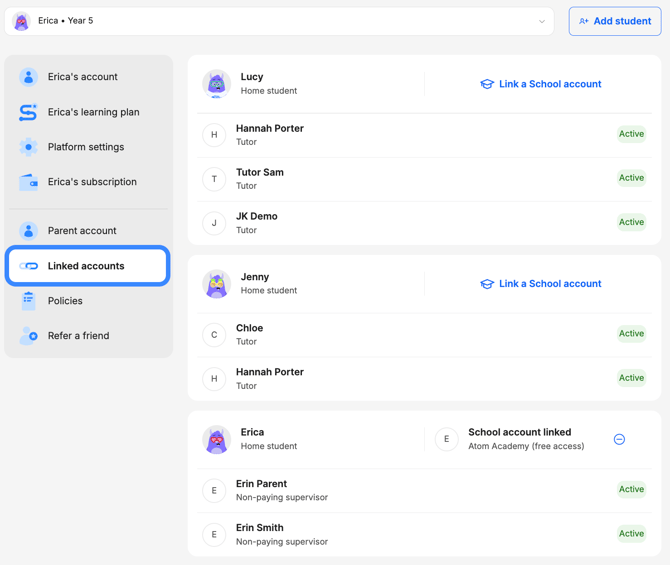
🏫 How to find out if my child's Atom Home and Atom School accounts are linked
If your child uses Atom both at home and at school, their two accounts can be linked so your child can log into Atom using a single username and password, instead of using two separate sets of login details and view all work in one place.
How to check:
-
Select Linked accounts
-
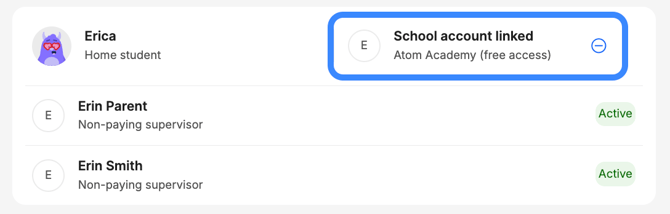
If your child's Atom Home and Atom School accounts are linked, you will see a label on the right-hand side of the child's card confirming 'School account linked'
❓Where can I find accounts linked to my child?
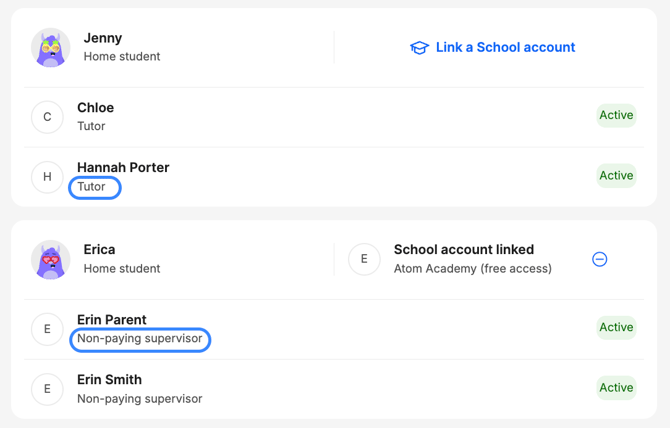
You can see any other supervisors connected to your child, such as a second parent/guardian or tutor. This is useful if you're not sure who else is accessing their profile.
How to check:
- Select Linked accounts
- If you have multiple children on the account, scroll to the child you wish to review
🔗 How to link an account
You can link:
- A school account to an Atom Home account, if it isn't already connected
- Additional children, you already have accounts for, whether they're home, home and school, or school-only, to your account
Link the Atom Home and Atom School accounts
- Head to Linked Accounts > Select the child whose account you wish to link
- If you are linking an existing Atom School account to an Atom home account, select > Link a Home Account and follow the on-screen prompt

-
-
If you are linking an existing Atom Home account to an Atom School account, select > Link a School account and follow the on-screen prompts.
-

Link an additional child to your account
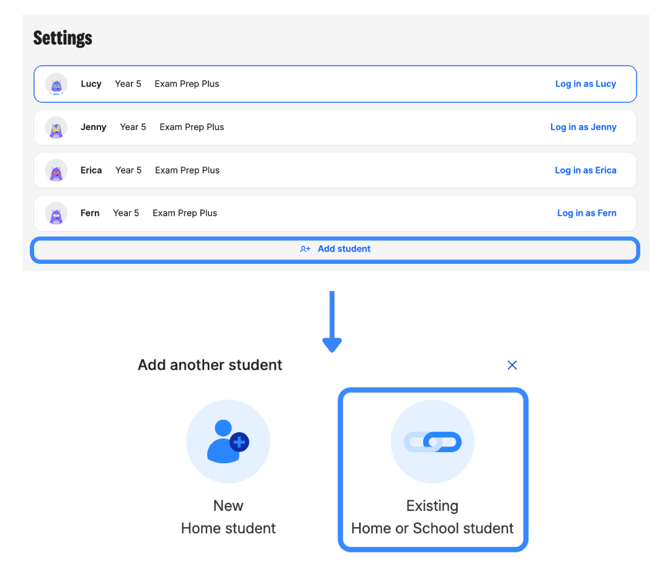
- Head to Settings
- Select ‘Add student’
- Select ‘Existing home or school student’ and enter details.
Link parent/supervisor or tutor to child
- Coming soon 👀
⛓️💥 How to unlink an account
Unlink Atom Home and Atom School
- Head to Linked accounts
- Select the child whose Atom School and Atom Home accounts you want to unlink.
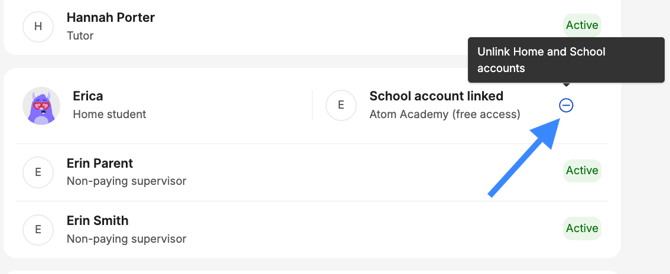
- On the right-hand side of the child's card, you’ll see a label confirming “School/Home account linked”. Select the blue unlink icon (Θ) to remove the connection.
Unlink parent/supervisor or tutor to child
- Coming soon 👀
💡Frequently asked questions
What's a "non-paying supervisor"?
A non-paying supervisor is a parent/guardian who is not paying for the subscription but is linked to your child.
Who can unlink a supervisor?
Only the primary supervisor on the account, usually the parent who set it up, can unlink other supervisors.
My child moved schools and I can't link the new one, what do I do?
You will need to unlink the old school account first. Once that's removed, you'll be able to link the new one.
I have two children signed up under different emails, can I see them both in one place?
Yes. Head to Linked accounts to add your second child's existing account to your main login. Please be aware that the email address used to create the subscription for each child will still be the main account holder and will be the only account that can make changes to the subscription.
Will unlinking an account delete any progress?
No. Unlinking simply removes the connection between accounts; it doesn't delete any learning history or progress.
If you run into any trouble, our Education Experts are on hand at support@atomlearning.co.uk.